Joan Website | Joan Bio | Joan Licensing Info | Joan Contact Info | Blog Main Page

Art Licensing by artist Joan Beiriger: I'm happy to share art licensing info but please
give me credit and link to my blog when using it on your site. Thanks.

Wednesday, January 4, 2012

Art Licensing: The Importance in Having a Business Plan

You may have heard that when you have a business you should have a business plan. Many people think the purpose of a business plan is to entice investors to loan them money for their business. And since most artists do not plan to get a loan they question whether they need a business plan. However, that is not the only purpose in having one. It is also to put down on paper your business goals and objectives. It helps you think objectively, form strategies, focus and make the right decisions.

Each business plan is different depending on the type of business and the goals. Some of same information should be included in every business plan as pointed out in "Writing a Business Plan" by the U.S. Small Business Administration and in "Business plan" by wikipedia.org. They are:

• cover page and table of contents
• executive summary
• business description
• business environment analysis
• industry background
• competitor analysis
• market analysis
• marketing plan
• operations plan
• management summary
• financial plan
• attachments and milestones

Gulp, the above list is overwhelming! Filling out all that information is time consuming and how do you start? Information about business plans can be found on the U.S. Small Business Administration and on wikipedia.org websites (links are above). And also read "Business Plan Elements" by Maire Loughran of Arts / Crafts Business Guide and "Business Plans for Artists: Here, I Did It for You!" by THEABUNDANTARTIST for information on business plans for the artist.

What may be the most helpful in creating your own business plan is to look at ones already written for businesses'. Below are links to some examples of business plans for craft and art businesses'. By reading them, you can get some great ideas on how to write your own business plan.

Business Plan Examples
• "Art Sales Custom Framing Business Plan" for Hart Fraeme Gallery
• "Bicycle Art Business Plan" for BikeArt
• "Custom Pottery Business Plan" for Kaolin Calefactors
• "Custom Quilt Artist Business Plan" for Sew District
• "Custom T-Shirts Business Plan" for Your T-Shirt!
• "Decorative Pottery Business Plan" for Fat Cat Creations
• "Pottery Studio Business Plan" for The Pottery Table
• "Scrapbooking Store Business Plan" for It's Scrappy!

A business plan is not static but changes as your business evolves. For example, you may start your licensing career by designing for one demographic such as whimsical art for adults but find manufacturers are more receptive to licensing the images for the tween market. Or, you find that some of your images are in great demand for the jig-saw puzzle industry. Thus, it would be beneficial to concentrate on creating more art for puzzles and get established in that industry before moving on to other product categories.

Your business plan needs to be referred to, analyzed, and update regularly to improve your business. Read "Easy Two-Step Business Plan for 2012" by art licensing coach J'net Smith for an interesting and thought provocative article on business goals and the questions you should ask yourself to improve your art licensing business. And if you need help in focusing on your goals, purchase artist Tara Reed's e-book "The Goal Wheel for Artists." I know artists that found it very helpful.

Comments are welcome. Post yours in the comment section (below).

Tuesday, December 27, 2011

Art Licensing: Christmas Trends

Christmas is the most profitable time of the year for retailers. Consumers spend more money decorating their homes and gift giving than any other time of the year. Thus, Christmas themed art on products are a huge category in licensing art. And using colors and Christmas motifs that are popular with consumers are important when creating art for products. However, trends that are predicted to be "hot" by trend experts may not be as important. As with all product categories, artists must do their homework in learning which manufacturers follow trends and which ones use traditional designs and color for their products. For instance, manufacturers that license graphic art on greeting cards tend to use more trendy colors and motifs than manufacturers that produce fine art greeting cards. Below are discussions about color, motif, and word trends used in Christmas art.

Color Trends
There are several trend services that predict trends for different product categories. One is The Trend Curve and the international authority on color and design trends in home furnishings. Michelle Lamb the co-founder and editorial director of The Trend Curve attends major trade fairs around the world to help her forecast trends in color, patterns and designs. She predicted that the Christmas color for 2011 would be silver and a light shade of green as stated by Debbie of Fancy House Road blog in "2011 Christmas Decor Trends: Silver and Green." And Interior Holic agrees in "Christmas 2011 Decoration Trends." Most likely Michelle Lamb saw this trend at the spring Frankfurt Germany's huge trade show Christmas World. In fact, these colors are big in the Netherlands according to Marianne Songbird from the Netherlands in "Christmas Decorations Fashion Trends 2011."

But, even if silver and light green are "hot" 2011 Christmas colors in Europe are they in the United States? I sure did not see it THIS year. Some of the articles that I read suggested that retail stores would be decorated with these colors. I do not remember the decorations at most department stores but Kohl's used red and gold. And you would expect that store window displays in New York would follow color trends. But the colors used in the store fronts varied depending on the theme displayed and products shown. View "Christmas in New York 2011" to see fabulous window displays. Look at the side bar on the website to select various department store window displays.

So just because a trend expert predict certain colors to be "hot" for Christmas does not mean manufacturers and retail stores follow them or can even implement that year's predicted trends because of the long lead time in their production schedule. Also most consumers cannot afford or wish to redo totally their Christmas decorations each year just to have the trendy Christmas colors in their homes. Perhaps Margery Stewart Baxter of Pro Flowers in "2011 Christmas Decorating Trends You Want to Know About" best states the use of trendy colors. ". . . A trend does not make a mandate. Stores are happy to satisfy Christmas shoppers of all styles, even the markedly "untrendy." And Beverly Fabrics blog proves that in "2011 Christmas Trends" because they show an array of Christmas decorating options and colors that should satisfy every consumer.

Motif Trends
When searching the internet, I could not find any articles about trends for Christmas motifs. So I used the old standby and looked at Christmas products in retail and internet stores. Popular motifs seemed to be the ubiquitous Santa, snowman, reindeer, poinsettia, holly, candy cane, pine cone, cardinal bird, and snowflake. Also used were Christmas trees, gingerbread men, polar bears, penguins, ornaments, stockings, mittens, wreaths, and various birds and flowers. None of these motifs are new and have been appearing on Christmas art for years.

Word Trends
As with a lot of art on products in todays market, Christmas art often incorporates words of hope and good feelings such as love, joy, celebrate, hope, and cheer. In recent years, the words "Merry Christmas" has been replaced with "Happy Holidays" on much of the art. This change is an attempt to make products appeal to a broader spectrum of consumers. America has become more religiously diverse and many non-Christian religions also celebrate around the end of the year. By using a more generic term such as Happy Holidays, products appeal to consumers that do not belong to a religion, belong to a non-Christian religion, or belong to a Christian religion.

Should artists follow trends?
While it is important for an artist to be aware of the current trends in Christmas art, they may choose not to use them in their art. Using or not using trends depends on the art style and product. For instance, if art is created for the decorative flag industry, the predicted 2011 Christmas colors of silver and light green is not colorful enough. However, those colors would be perfect for elegant looking tabletop products.

Artists should not depend on others to predict trends but do their own research by observing what colors and motifs are popular from Christmas to Christmas and then project what will be popular the following year(s). For example, penguins have been around for a while but they seemed to be on more products this year. Will they be on even more products next year? One method in tracking trends is to construct trend (mood) boards with retail and internet product advertisements. To see examples of trend boards, check-out UK's Advocate-Art licensing agency blog post "Christmas Countdown Has Begun ! Advocate Defining Christmas Trends (2012)."

Make sure that you read the comments to this article.  They are very informative!

Comments are welcome. Post yours in the comment section (below).

Wednesday, December 21, 2011

Seminar in Atlanta - January 12 "The New Dynamics of Art Licensing"

At the request of artists that cannot attend "The New Dynamic of Art Licensing" seminar in Anaheim, artists Karen Embry, Phyllis Dobbs, and Brenda Pinnick will also be offering one on January 12, 2012 in Atlanta. This is the day before the opening of the Atlanta Gift Show temporary exhibitors. They will discuss the creation of licensable art, portfolios, and marketing materials, color and trends, approaching manufacturers, and MUCH MUCH more. The seminar will be from 4 to 6 PM followed by optional private consultations. For more information read, "The New Dynamics of Art Licensing Seminar."

HURRY and register because the early bird special ends on January 4. And if you haven't registered for the Anaheim seminar, do it soon. The early bird special for the Anaheim seminar ends January 14.

Sunday, December 18, 2011

Photoshop Tutorial: Using Pattern Overlay, Pattern Stamp, & Pattern Maker to Create Backgrounds

Creating patterns for licensing to manufacturers in the fabric and paper industries are not the only uses for patterns. Many artists also apply them to backgrounds and motifs in their work to add interest to the art. You can easily create your own custom patterns in Photoshop and save them in libraries to be used with the Paint Bucket tool, the Pattern Stamp tool, and the Pattern Overlay layer effect. Photoshop can also generate random tiled patterns with their Pattern Maker filter.

Creating a Pattern and Using the Pattern Overlay Effect

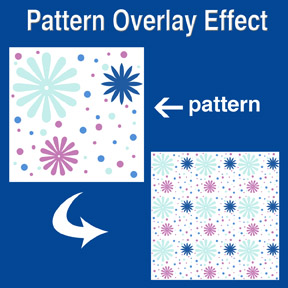
A pattern is created as an image or a set of icons and is repeated (tiled). You can create your own custom pattern by using any motifs that are created in Photoshop or your own painted and scanned ones. You define the motifs as a pattern in Photoshop by selected the image with the marquee tool and select Edit / Define Pattern. You apply the created pattern to a layer by selecting the pattern overlay in the blending options effects (Layer /Layer Style / Pattern Overlay) or in the layers window click on the fx symbol at the bottom and select Pattern Overlay ... to open the Pattern Overlay window.

View "creating a Photoshop pattern" video to see a demonstration on how to create your own pattern and apply it to a layer by using the Pattern Overlay effect in Photoshop. The Pattern Overlay window allows you to adjust the scale of the patterns, the opacity, and use the Blend Mode effects. Note: As mentioned in the video, the layer cannot be blank but must have a color or image on it for the pattern to be visible. The color/image does not have to fill the entire layer. Hint: If you wish to have a transparent background for your pattern so that it can be used on any color or motif, make sure that the layer that the pattern was created on is transparent and none of the layers below it are visible including the background layer.

The picture at the left shows the initial pattern that was created in Photoshop with the brush and custom shape tools on a white background. Notice that none of the icons are cut off but are within the boundaries of the sides. This is to avoid imperfect repeating when the pattern is tiled. As was stated above, the background could have been transparent when the pattern was created so that it could have been placed on any color background. The repeated pattern in the example was created with the Pattern Overlay and was scaled down to about 20% while in the Pattern Overlay window.

Using the Pattern Stamp Tool
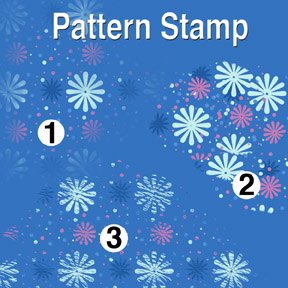
Using the Pattern Stamp tool (located on the tool bar behind the Clone Stamp tool) is an easy way to brush a partial pattern onto the layer. This adds interest to a background or motif. The tool has several options (located along the top of Photoshop's window) - brush selection, layer styles (mode), opacity, pattern selection. The only draw back to the Pattern Stamp tool is that the size of the pattern cannot be altered as it can in the Pattern Overlay. View the video "How to use pattern stamp tool in Photoshop (CS5 CS4 CS3, CS2 etc) tutorial" on how to use the Pattern Stamp tool. Note: The mouse has to be constantly held down while applying a pattern for it to be continuous. The tiling of the pattern is reset after the downward pressure of the mouse is released. Hint: Interesting textures to the pattern can be achieved by using textured brushes and even a variety of brushes on the same layer.

The patterns at the left were created with a transparent background pattern (same pattern as used in the Pattern Overlay example) and various brushes. The Star Burst brush was used for pattern number one (1), Flat Angle brush for number two (2), and Dune Grass brush for number three (3). The mouse was held down to get a continuous pattern for both number 1 and 3. On number 2, several iterations of pressing the mouse while applying the pattern and then releasing it created the collage look.

Creating Patterns with the Pattern Maker Filter
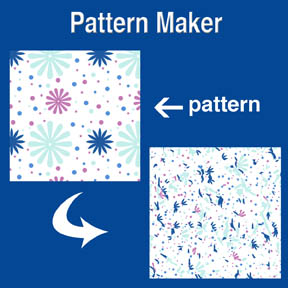
The Pattern Maker filter located in the pull down filter window is already loaded in Photoshop for version PS3 and below. However, for version PS4 and above it is an optional plug-in. It must be downloaded from Adobe's website. Pattern Maker slices an image and reassembles it randomly to create a tiled pattern. The image can be sampled and a pattern generated numerous times until you get a pattern that you like well enough to save as a pattern preset. Once saved as a pattern preset, it can then be used with the Pattern Stamp tool and Pattern Overlay effect. View "Photoshop Tutorial - Filters: Pattern Maker" and "Photoshop CS5: Tutorial Using the Pattern Maker Adobe Training Lesson 8.6" videos on how and when to use Pattern Maker.

The picture at the left shows the initial pattern and the resulting scattered pattern that was generated in Pattern Maker. Using a pattern like this with Pattern Overlay or the Pattern Stamp tool makes an interesting background or border for your art collection.

Free Patterns
There are many websites that offer patterns (some free) for you to download. You can google the internet or start with "250 Free Design Patterns" and "900 Photoshop Patterns" found on artist Kate Harper's blog. Remember to get permission for commercial usage and check the copyrights before using any patterns found on the internet.

Related Articles
• "Creating Repeat Patterns with Photoshop, Illustrator and Artlandia Plug-in Software"

• "Photoshop Tip - Easy to Create Stripes and Plaids"

Comments are welcome. Post yours in the comment section (below).